
When to Upscale Images with AI (And When Not To)
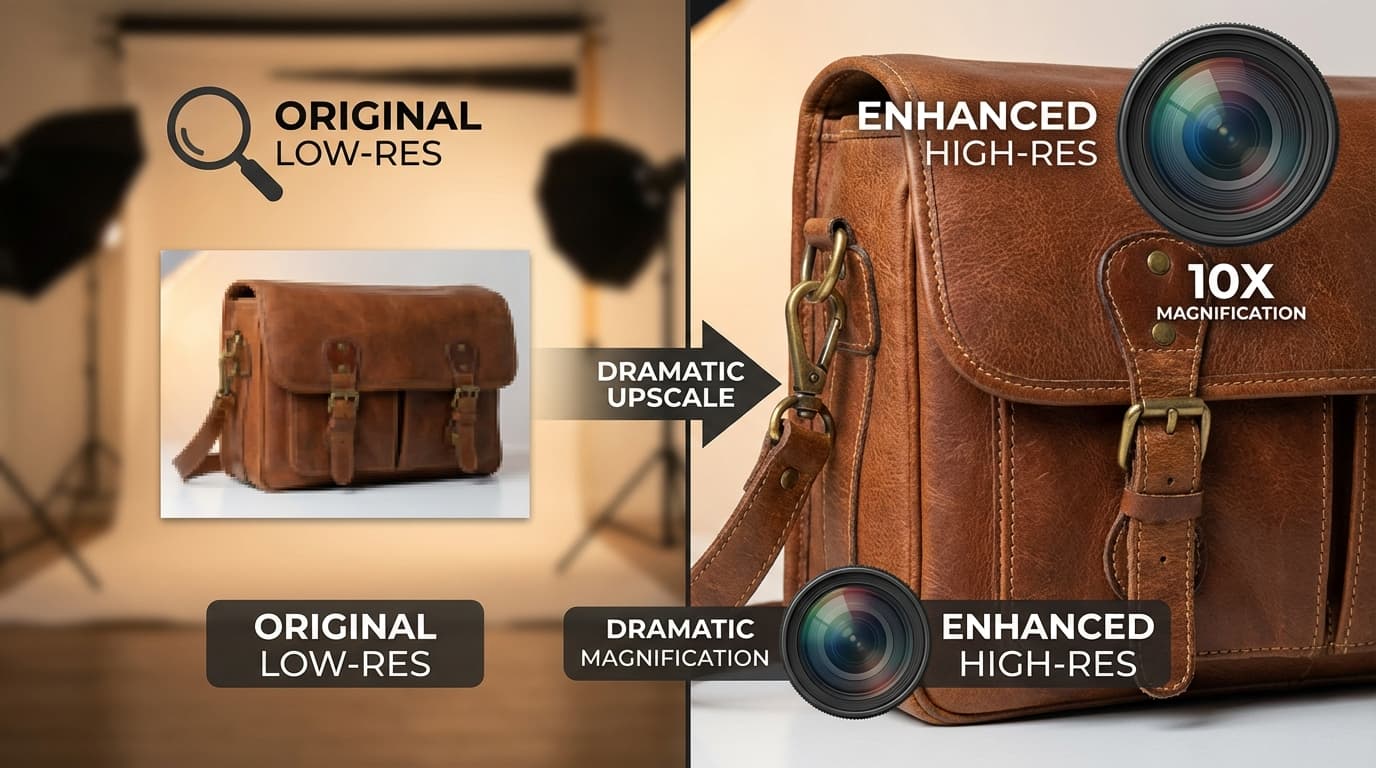
Upscale an image with AI when you need to rescue a low-resolution or old product photo, prepare an image for print, crop in tightly without losing quality, or resize an asset for a larger platform. Skip it when the source has heavy JPEG artifacts (upscaling amplifies them), when the image is blurry or out of focus (added detail can't fix optical blur), or when the file is already high resolution. AI upscaling adds realistic detail using machine learning, but it isn't magic — the source quality sets the ceiling.
When AI Upscaling Helps
Rescuing old or low-resolution product photos If you have product images that were shot at lower resolution (or saved at too-low quality), AI upscaling can bring them up to modern standards. A 2x or 4x upscale can make a 500px image usable at 2000px.
Preparing images for print Digital images that look fine on screen may appear pixelated in print. AI upscaling can increase resolution to meet print DPI requirements (typically 300 DPI) without visible quality loss.
Cropping without quality loss Sometimes you need to crop tightly into a product photo. Upscaling before (or after) cropping lets you maintain resolution in the final output.
Social media and marketing assets Different platforms require different image sizes. Upscaling lets you create larger versions of existing assets without reshooting.
When AI Upscaling Doesn't Help
Heavily compressed or artifacted images If the source image has visible JPEG compression artifacts (blocky patterns, color banding), upscaling will amplify these artifacts. Garbage in, garbage out.
Blurry or out-of-focus images AI upscaling adds detail, but it can't fix optical blur. If the original image is out of focus, the upscaled version will be a higher-resolution blurry image.
When the original is already high resolution Upscaling a 4K image to 8K rarely provides meaningful benefit for web or standard print use. The extra pixels add file size without visible quality improvement.
Best Practices
- Start with the best source possible. Even a smartphone photo in good lighting will upscale better than a professional photo that's been heavily compressed.
- Use 2x for most cases. 4x upscaling is impressive but increases file size 16x. Use it only when you genuinely need the extra resolution.
- Compare before and after. Always check the upscaled result at 100% zoom to ensure the added detail looks natural and doesn't introduce artifacts.