
How to Maintain Brand Consistency with AI-Generated Product Images
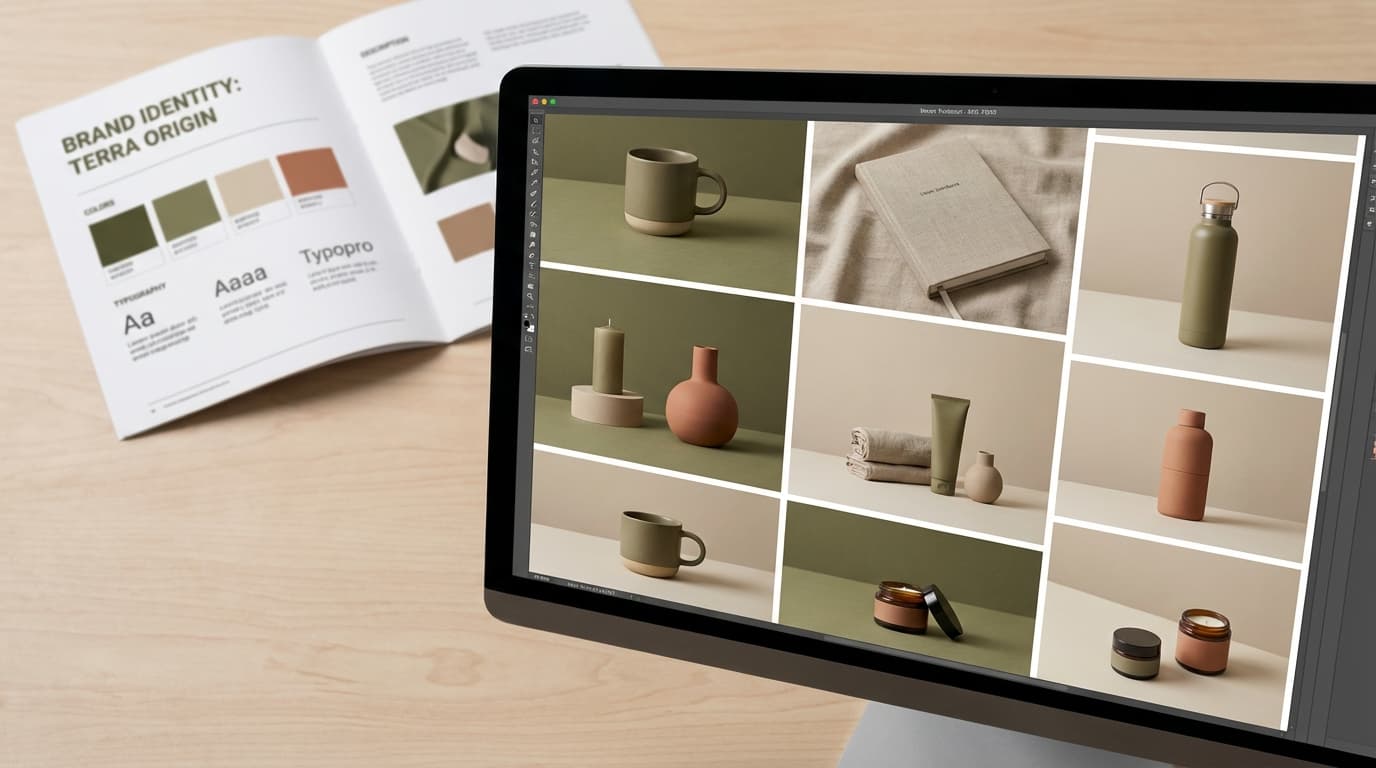
To keep AI-generated product images on-brand across a catalog, build a repeatable system: reuse the same reference images (model, pose, style), write prompt templates per category, normalize lighting with Relight, and lock brand colors with hex codes in the Pro engine. AI solves the production-speed problem — you can go from one product photo to a full catalog in hours instead of weeks — but generating each image independently lets small variations compound until your product page looks sourced from five different stock photo sites. Consistency is what separates a brand from a collection of images.
Why Consistency Matters
This isn't just an aesthetic preference. Consistent product imagery directly impacts:
- Brand recognition. Customers should recognize your photos before they see your logo. A unified visual style becomes part of your brand identity.
- Purchase confidence. Inconsistent imagery makes products look like they come from different companies. That erodes trust.
- Catalog cohesion. When a customer browses your collection, visual harmony keeps them focused on the products, not distracted by style shifts.
- Professional perception. Consistent imagery signals that you care about details. It's the visual equivalent of good typography.
Standardize Your Reference Inputs
The single most impactful thing you can do is use the same reference images consistently.
In the Create tool, you upload reference images for model, product, outfit, pose, and style. These references are the foundation of your output. If you swap them randomly between generations, your outputs will diverge.
Build a reference library organized by category:
- Model references. Pick 2-3 model references and stick with them across a product line. Same model reference = same body type, face structure, and overall vibe.
- Pose references. Create a set of 5-6 standard poses for your brand. "Standing with product at hip level," "seated, product on table in front," etc. Reuse these consistently.
- Style references. Choose 1-2 style reference images that define your brand's photography look. These anchor the overall mood across every generation.
When you use the same references consistently, FLUX.2 produces outputs that feel like they belong together — because they share the same foundational DNA.
Build Prompt Templates
Don't write prompts from scratch every time. Create templates for each product category and reuse them.
Example Template: Apparel on Model
"[Model description]. Wearing [product description] in [color]. Standing in [standard setting]. Lighting: [standard lighting setup]. Background: [standard background]. Camera: [standard angle and distance]. Mood: [brand mood keywords]."
Fill in the brackets for each product, but keep the structure identical. This ensures your prompt's structural elements — lighting, camera, mood — stay locked even as products change.
Category-Specific Templates
Different product types need different templates:
- Apparel: Focus on fit, drape, and model interaction with the garment
- Accessories: Emphasize detail, material texture, and scale relative to the body
- Home goods: Prioritize setting context, lighting atmosphere, and lifestyle integration
- Beauty/skincare: Highlight packaging detail, surface finish, and clean compositions
Write one template per category. Save them somewhere your team can access and reuse.
Use Relight to Normalize Lighting
Lighting inconsistency is the most common — and most noticeable — source of visual drift across AI-generated images.
Even with the same prompt, different generations can produce slightly different lighting. The fix: run every image through Relight with the same lighting parameters.
A practical approach:
- Generate all your product images for a collection.
- Pick the image with the best lighting as your reference.
- Run every other image through Relight, matching that reference lighting direction and intensity.
This post-processing step takes minutes and can unify an entire catalog. For more on this technique, see our guide on AI relighting for product photography.
Lock Colors with the Pro Engine
If your brand has specific colors — and it should — use the Pro engine in the Create tool. Pro supports hex color codes directly in prompts.
Instead of "navy blue background," you specify `#1B2A4A`. Instead of "warm beige," you use `#D4C5A9`. The engine renders these accurately, so your brand palette stays true across every generation.
Klein's narrative prompts interpret color descriptions loosely. "Navy" might shift between generations. Hex codes in Pro don't shift.
For brand-critical work, always use Pro.
Create a Brand Photography Guide
Document your standards. A one-page guide that covers:
- Approved model references (with file names or links)
- Standard pose set (with thumbnails)
- Style references (the 1-2 images that define your look)
- Prompt templates per product category
- Lighting parameters (direction, intensity, warmth)
- Brand colors as hex codes
- Engine choice per use case (Pro for finals, Klein for exploration)
This guide means anyone on your team can generate on-brand images without guessing. It's also invaluable if you're working with freelancers or agencies.
Practical Consistency Checklist
Use this for every batch of product images:
- Same model reference across the batch
- Same pose set (or subset) for the product category
- Same style reference anchoring the visual mood
- Prompt template used, not freeform prompts
- Pro engine selected for final production images
- Hex colors specified for any brand-specific colors
- Relight pass applied with consistent lighting parameters
- Side-by-side review — open all images in a grid and look for outliers before publishing
Consistency Is a System, Not a Single Setting
There's no "make it consistent" button. Brand consistency with AI-generated imagery comes from building a repeatable system: standardized inputs, templated prompts, post-processing normalization, and documented standards.
The good news is that once you've set up this system, it's faster than traditional photography and more consistent. A physical photo shoot has variables you can't fully control — weather, model energy, equipment differences between sessions. An AI workflow with locked references and templates produces remarkably stable output.
Start by defining your references and building one prompt template for your most common product category. Generate a batch, refine the template, and expand from there. For more on prompting strategy, see our guide on AI prompting for product photography. For inspiration on model photography workflows specifically, check out AI model photography for e-commerce.