
Color Variant and SKU Images Without Catalog Drift
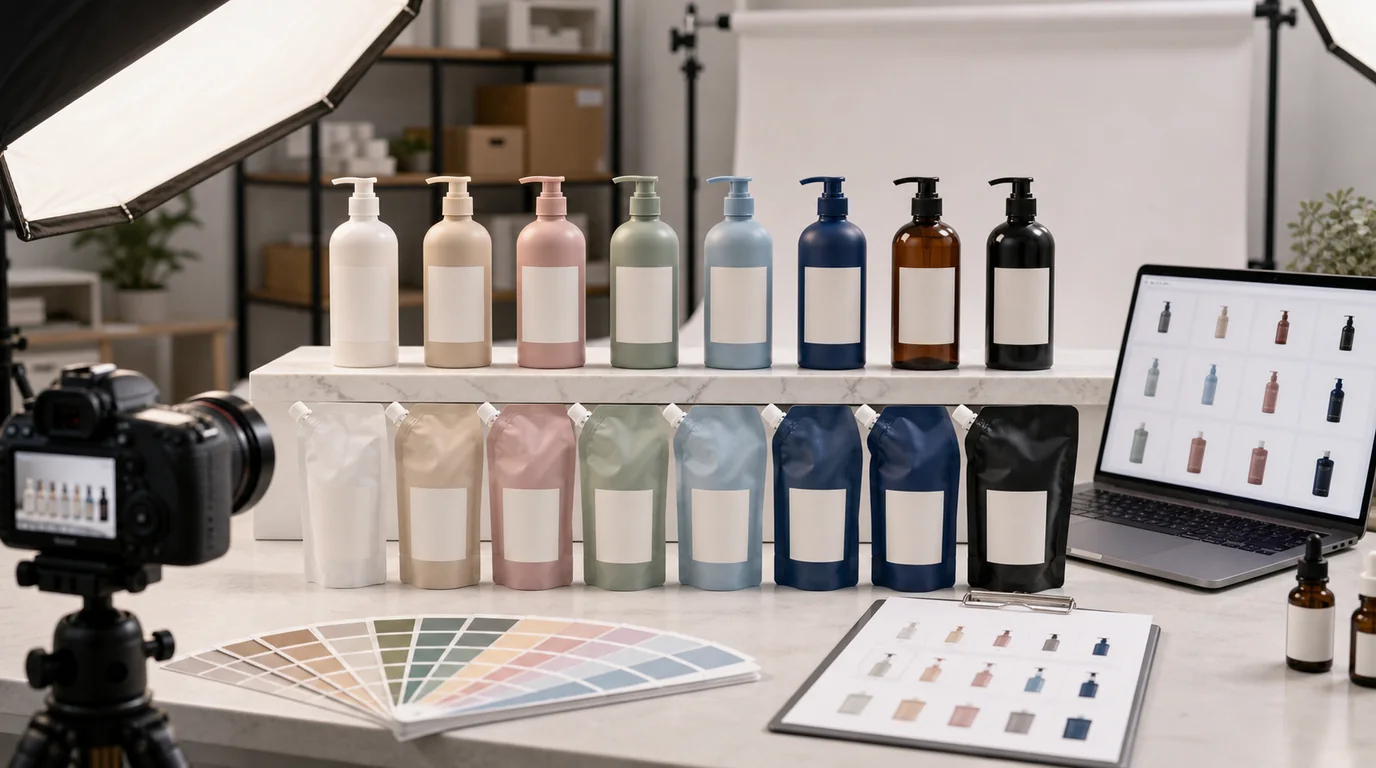
You keep color variants free of catalog drift by locking every constant — angle, crop, lighting, shadow — so the only thing that changes between SKUs is the one you intend. Color variants look simple until the catalog grows: one SKU is slightly larger, another has a warmer shadow, a third has a different crop, and the option selector starts to feel messy. The goal is not to make every image identical. The goal is to make differences intentional.
Define what must stay fixed
Before creating variants, lock the constants:
- Product angle.
- Camera height.
- Crop and margin.
- Shadow direction.
- Background treatment.
- Label position.
- File size and export ratio.
Then define what may change:
- Colorway.
- Material finish if it truly differs by SKU.
- Packaging color if each SKU ships differently.
- Included variant-specific accessory.
This prevents the buyer from mistaking photo inconsistency for product difference.
Decide the selector crop first
Variant images often fail because the crop is chosen after the colors are generated. Decide the selector crop before producing the family:
- Product should occupy the same visual weight in every option.
- The color-bearing surface should be visible, not hidden behind a label or shadow.
- Light colors need enough edge contrast against the background.
- Dark colors need label and silhouette separation.
- Transparent or reflective variants may need a documented exception.
For swatch-style selectors, do not rely on lifestyle lighting. Use a neutral view that lets the buyer compare the option itself. For full product thumbnails, keep the crop stable enough that switching options does not look like the page is jumping.
Use a master image
Choose one approved master image before generating the family. The master should have the cleanest shape, most accurate label, and most neutral lighting. Fix it first with /edit/remove-bg or /edit/upscale if needed.
From that master, create variant images in /create with strict instructions:
- Same angle and crop as master.
- Change only shell color to sage green.
- Preserve logo, button placement, seams, and proportions.
- Keep background and shadow identical.
Do not use a different lifestyle scene for every color unless the product page is specifically selling moods. For option selectors, consistency is more valuable than novelty.
Build comparison images separately
Variant selector images and comparison images are different.
Selector images should be simple, consistent, and quickly scannable.
Comparison images can show the full set together, but they need careful spacing and order. Use a stable order that matches the site options: black, white, sage, blush, navy. Do not let AI invent extra colors because the image looks more balanced with five items instead of four.
Review color honestly
Color accuracy is difficult across screens, cameras, and generated images. Avoid pretending the image is a perfect color proof. Instead, keep the workflow honest:
- Compare against the physical product or approved brand swatch.
- Check under neutral display settings when possible.
- Avoid heavy color grading.
- Do not shift background color in a way that changes perceived product color.
- Use product copy to explain natural variation only when true.
For materials like fabric, leather, wood, stone, glaze, and cosmetics, color and texture interact. A flat recolor can make the product look plastic. Generate with material constraints, not just color names.
Naming and review
Use SKU-based filenames:
- sku123-black-selector-v01
- sku124-sage-selector-v01
- sku125-blush-selector-v01
- set-all-colors-comparison-v02
Review as a grid, then review on the live product page. Grid review catches catalog drift. Page review catches selector confusion and mobile cropping issues.
What not to generate
Do not create variant images that change the product silhouette. Do not add seasonal props to only one color. Do not make a darker color glossier unless the actual material changes. Do not let labels become unreadable on light or dark variants.
If you are planning a larger SKU refresh, combine this workflow with /blog/ai-image-workflow-ecommerce. If the color option image is also used in ads, create a separate ad variant instead of overloading the selector asset.