
AI Product Scale Comparison Images Buyers Can Trust
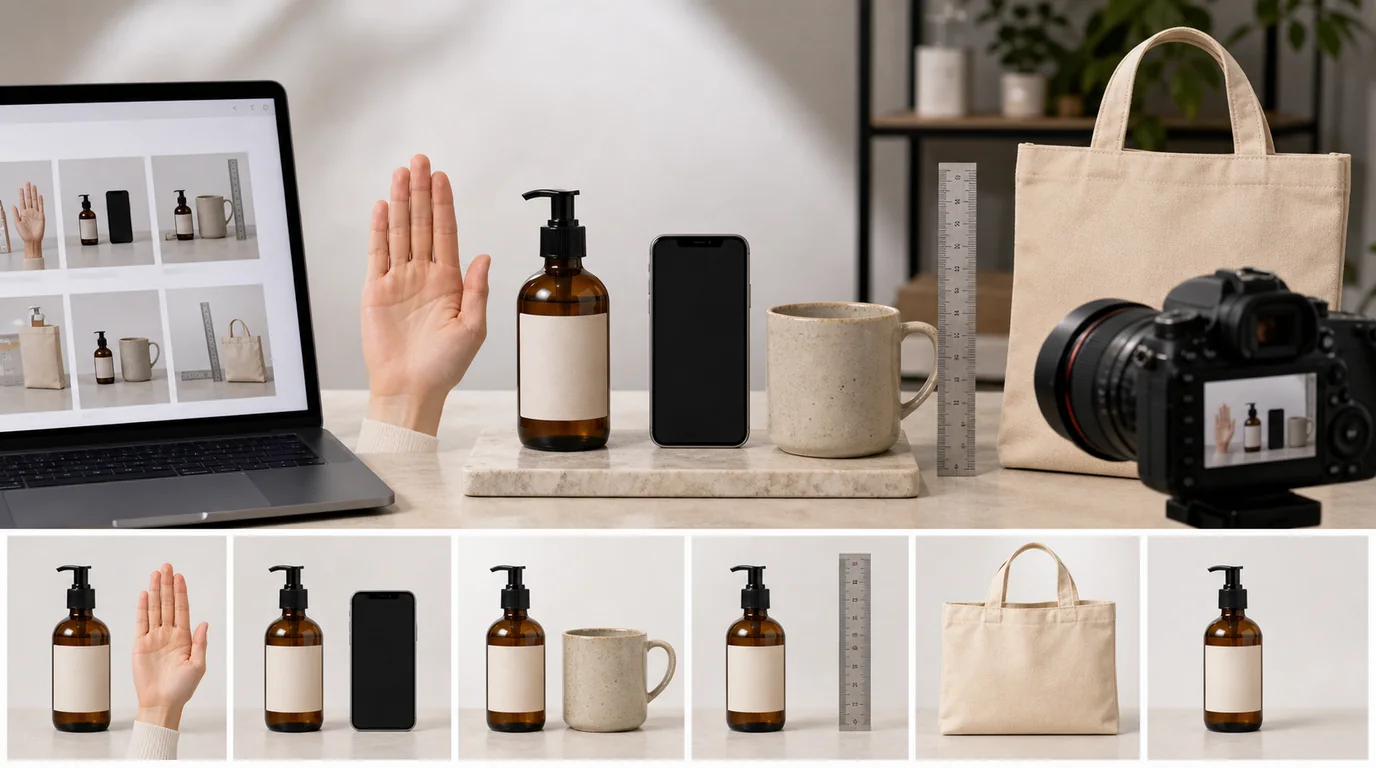
A scale image buyers can trust anchors the product to real dimensions and a familiar reference, so it answers one of the most common ecommerce doubts: Is this the size I think it is? These images matter most for bags, furniture, accessories, decor, kitchenware, beauty products, electronics, stationery, pet goods, and anything sold online without a physical tryout.
The challenge is that AI can make scale look confident while being wrong. Your workflow has to anchor the image to real dimensions.
Pick a reference shoppers understand
Good references are familiar and relevant:
- Hand holding the product.
- Product on a desk beside a laptop or notebook.
- Bottle beside a sink, shelf, or palm.
- Bag worn on a shoulder or placed on a chair.
- Rug under a sofa edge.
- Pet item beside a common food bowl.
Avoid references that vary too much, such as unusual vases, decorative books, oversized fruit, or abstract props. They may look stylish but do not help judgment.
Start with measurements
Write the real dimensions before generating:
- Height.
- Width.
- Depth.
- Capacity or volume.
- Weight if it affects perceived size.
Then decide which dimension the image should clarify. A tall bottle needs height context. A pouch may need width and depth. A chair needs seat height and room presence.
Translate measurements into visual anchors
Numbers alone rarely help the image operator. Convert the measurement into a visual rule before prompting:
- 12 cm jar: shorter than an average palm, taller than a lip balm.
- 30 cm pouch: wider than a hardcover book, smaller than a 13-inch laptop.
- 750 ml bottle: close to a standard wine bottle height, not a small sample.
- 2 cm thick notebook: visible spine thickness, not a flat sheet.
These anchors do not replace the listed dimensions. They help reviewers catch images that feel plausible but are proportionally wrong.
Create one scale job per image
Do not ask one image to show every dimension. Use separate images:
- Hand scale: quick human reference.
- Surface scale: how it fits on a table, vanity, shelf, or counter.
- Body scale: wearable products and bags.
- Room scale: furniture, decor, rugs, lighting.
- Set scale: how several items compare within a kit.
Generate in /create with explicit reference constraints. For example: same 12 cm jar beside an average adult hand, jar height about half the palm length, label front-facing, no extra products.
Review proportions, not just realism
A scale image can look realistic and still be misleading. Review against known anchors:
- Does the hand size look natural?
- Does the product match its stated dimensions?
- Is the crop hiding the comparison?
- Are shadows and contact points plausible?
- Does perspective make the product look larger than intended?
- Are there extra versions of the product in the frame?
If the image shows a bag on a model, review strap length, body placement, and opening size. If it shows a product on a desk, check the relationship to keyboard, notebook, mug, or shelf height.
Use captions carefully
If your product page supports captions, keep them factual:
- Fits in one hand.
- 250 ml bottle shown beside standard bathroom sink.
- Medium pouch shown with 13-inch laptop for scale.
Do not add unsupported claims like perfect travel size or compact enough for any bag unless the product and audience justify it.
Common mistakes
Do not use a child hand unless the product is for children and the context is clear. Do not use a model if body scale could imply fit, size, or wearability you cannot support. Do not show a product beside a laptop if the product is actually much smaller or larger than the generated image suggests.
When accuracy matters more than scene quality, keep the source product photo and edit the surrounding context. Use /edit/remove-bg to isolate the item, then place it into a controlled scale composition. Use /edit/upscale only after the scale has been approved.
Where it belongs
Place scale images after the shopper understands the product identity but before fine details. A practical sequence is hero, alternate angle, scale, texture or feature, packaging.
For testing whether scale images should move earlier, use the controlled approach in /blog/ab-testing-product-photos-ai. Test placement, not a completely different page, so you know what changed.