
How to Generate Multiple Product Angles from a Single Photo
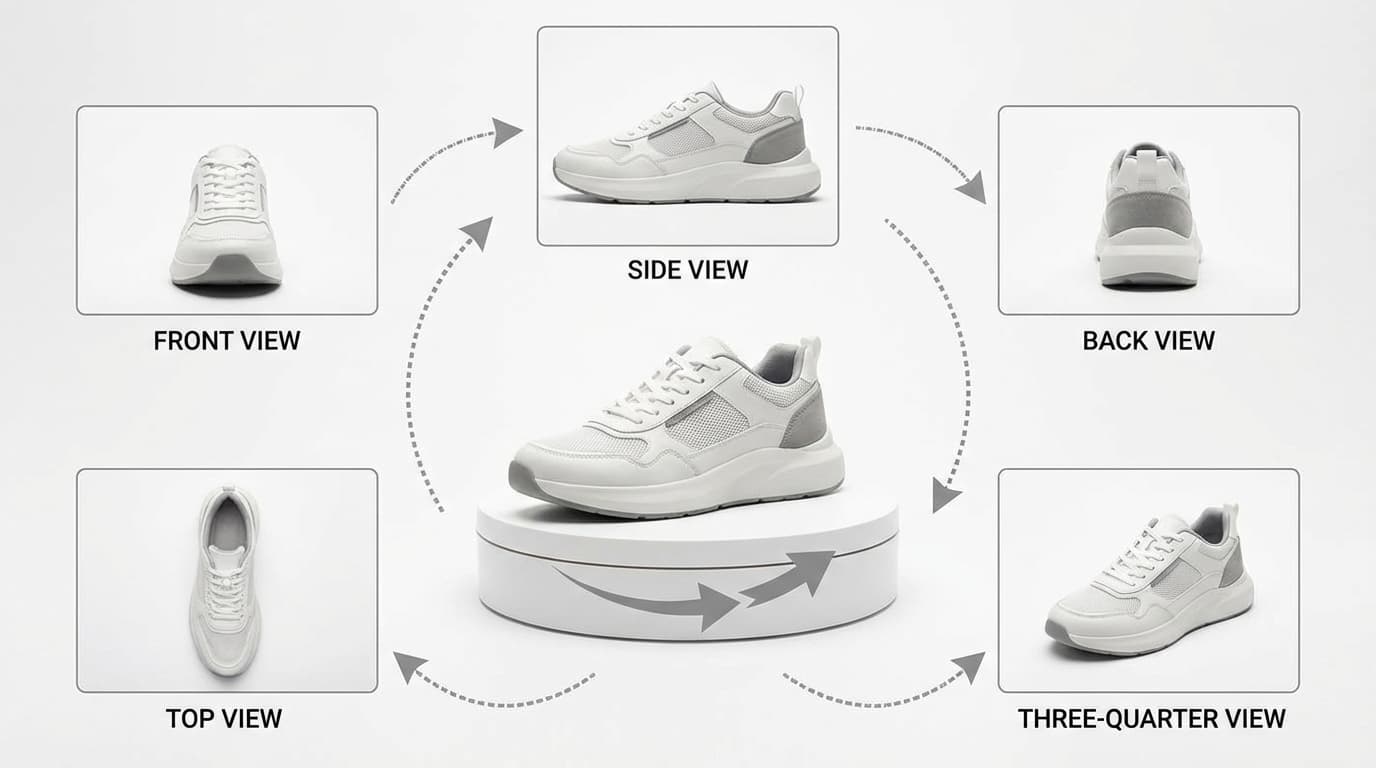
To generate multiple product angles from a single photo, upload one reference to an AI tool like GESTEL's Multiple Angles: it infers the product's three-dimensional structure from that image and renders new views — front, side, back, three-quarter, and detail — by rotating the product horizontally or vertically and adjusting zoom. That replaces the multi-angle shoot most listings need, since shooting four to eight angles per SKU otherwise multiplies your photography cost proportionally.
Why Multi-Angle Photos Matter
Customers can't pick up and rotate a product online. Multiple angles are the next best thing. Research shows that product listings with three or more images see measurably higher conversion rates and lower return rates compared to single-image listings.
The standard e-commerce angle set includes:
- Front view — The primary listing image
- Back view — Shows labels, ports, closures
- Side view — Reveals depth and profile
- Three-quarter view — The most flattering "hero" angle
- Detail/close-up — Highlights materials, textures, or key features
Shooting all of these for every SKU is time-consuming. For a catalog of hundreds of products, it's a project that can stretch across weeks.
How AI Angle Generation Works
GESTEL's Multiple Angles tool takes a single product photo and generates new views by rotating the product horizontally or vertically. You control:
- Horizontal rotation — Spin the product left or right to create side and back views
- Vertical rotation — Tilt up or down for top-down or low-angle perspectives
- Zoom — Move closer for detail shots or pull back for full-product views
The AI infers the product's three-dimensional structure from the single input image and renders plausible views from the requested angles.
Which Angles Matter by Product Category
Focus on the angles your customers actually need:
- Footwear — Side profile, three-quarter front, sole, back (heel)
- Bags and accessories — Front, back, side, interior, strap detail
- Electronics — Front, back (ports), side (thickness), three-quarter
- Apparel — Front, back, detail (fabric/stitching)
- Furniture — Front, side, top-down, detail (material/finish)
Not every product needs every angle. Prioritize views that answer the questions customers are most likely to have.
Tips for Better Input Photos
The quality of generated angles depends heavily on your input:
- Use a clean, uncluttered image. Remove the background first for best results.
- Choose a three-quarter front angle as your input. This gives the AI the most geometric information about the product's shape.
- Use a well-lit, high-resolution photo. More detail in the input means more realistic generated angles. If your source image is low-resolution, upscale it first.
- Avoid heavily stylized or distorted input. Wide-angle lens distortion or heavy color grading can confuse the angle generation model.
Building a Complete Gallery from One Shot
Here's a practical workflow for creating a full product gallery:
- Start with your best product photo — Ideally a three-quarter angle on a clean background
- Remove the background using the Remove Background tool
- Generate 3-4 additional angles using Multiple Angles
- Relight if needed — Use Relight to ensure consistent lighting across all angles
- Upscale any images that need higher resolution for your platform using Upscale
This workflow produces a five-image product gallery from a single smartphone photo, all without a studio or photographer. For a deeper dive into chaining these tools together, see our complete AI image workflow guide.