Product Page Images
Explain the product, one image panel at a time.
A product page needs an explanation as well as a photograph. Build a panel around one message: what the product is, why a feature matters, or what is included. Supply the facts and exact copy, then review the generated composition before placing it in your page.
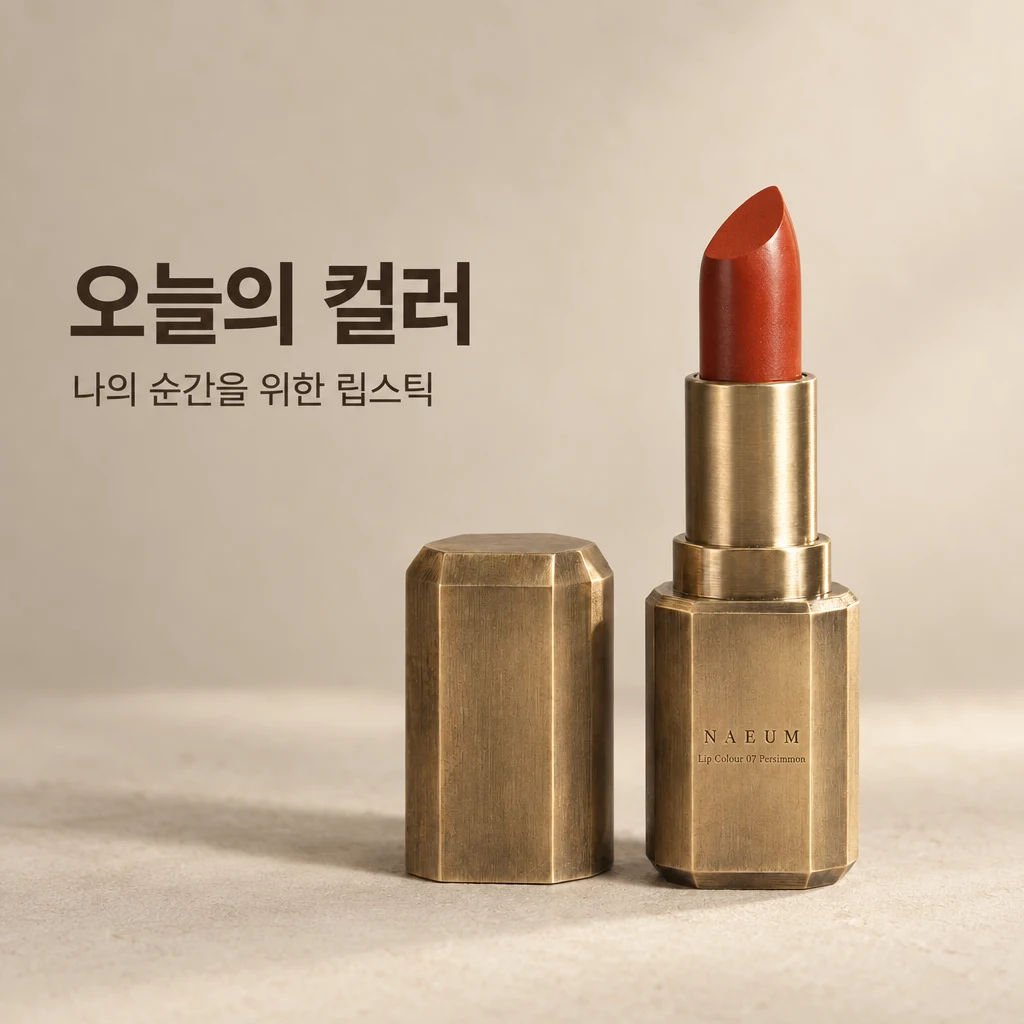
See the idea in practice
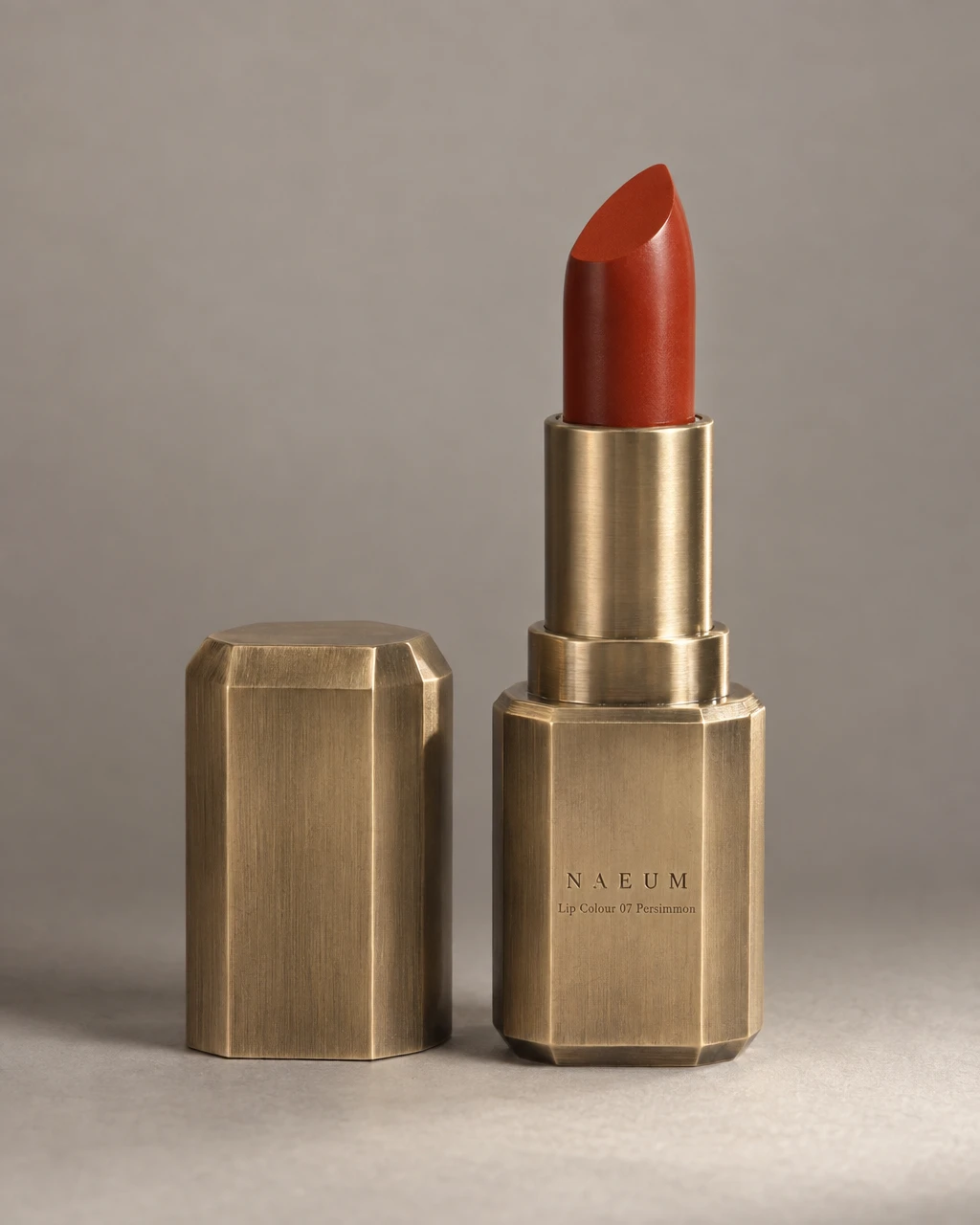
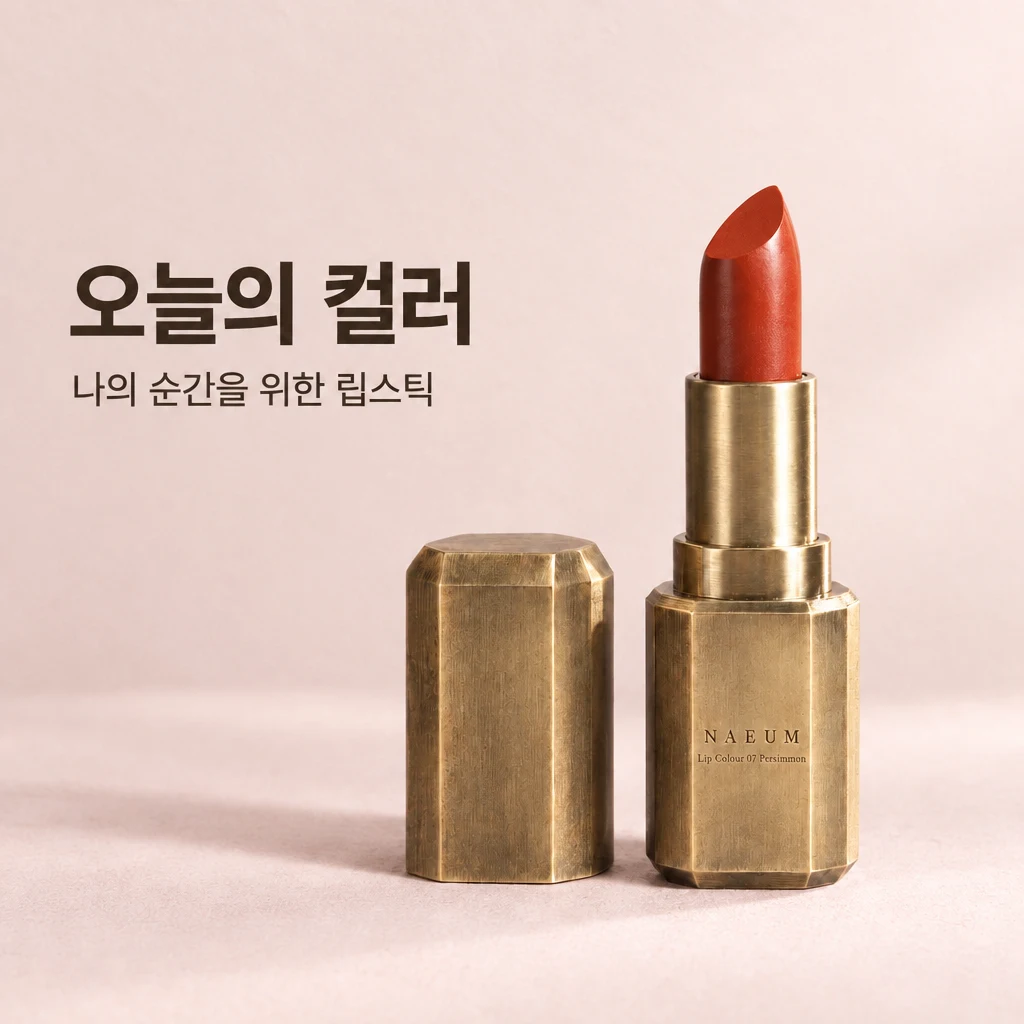
A real GESTEL intro-panel recipe run turns the demo lipstick photo and supplied Korean headline into a square product-page image. The second version changes the background to pale pink. The headline means “Today’s color”; the supporting line means “Lipstick for my moment.”
From product to finished creative
- 01
Choose one message
Give each panel a clear purpose and prepare the approved wording.
- 02
Build the panel
Select an intro or feature-panel recipe in Canvas and add the product references.
- 03
Review and place it
Check text and imagery, download the panel, and place it in your page editor.
What you can make
- What to bring
- Product photos, the exact headline, and verified feature points. Provide size, ingredients, or contents only when they are established product facts.
- What you get
- Finished introduction or feature-panel images for your product page. They are image assets you arrange in your existing storefront editor.
- What you can change
- Choose an intro or feature-panel recipe, provide the copy, and refine the visual composition in Canvas.
- What to check
- Review every character and factual claim. Image panels do not provide a responsive website, HTML layout, editable text layers, or automatic store publishing.
Find the right fit
Choose panels when the job combines photography with an explanation. Keep important product facts in accessible page text as well, rather than placing all information only inside an image.
The model, output format, and workflow determine credit use and plan availability. The pricing page has the current options; video requires a paid plan.
Compare plans and credits →Questions, answered
Does this build my whole product page?
It produces image panels. You still arrange the page, add accessible product text, and publish through your storefront tools.
Can I change the wording later?
Request a revised image with the corrected copy. The exported panel is not a document with independently editable text layers.
Will it invent selling points for me?
Provide verified product facts and approved claims. Review the output and remove any wording that goes beyond what your product can support.
How do I check plan availability and cost?
Follow the pricing link on this page for current plans and credits. The selected model, output, and edits determine credit use; review the estimate in the app before starting.
Keep exploring
Make the next product detail easier to understand.
Start with your product, review the result, and make it yours.