AI Product Videos
Give your product a little motion.
A small camera move, a change in light, or a carefully chosen product moment can add another way to see an item. Use Canvas to describe the motion you need, generate a short clip, and review it before adding it to a campaign or product page.
See the idea in practice
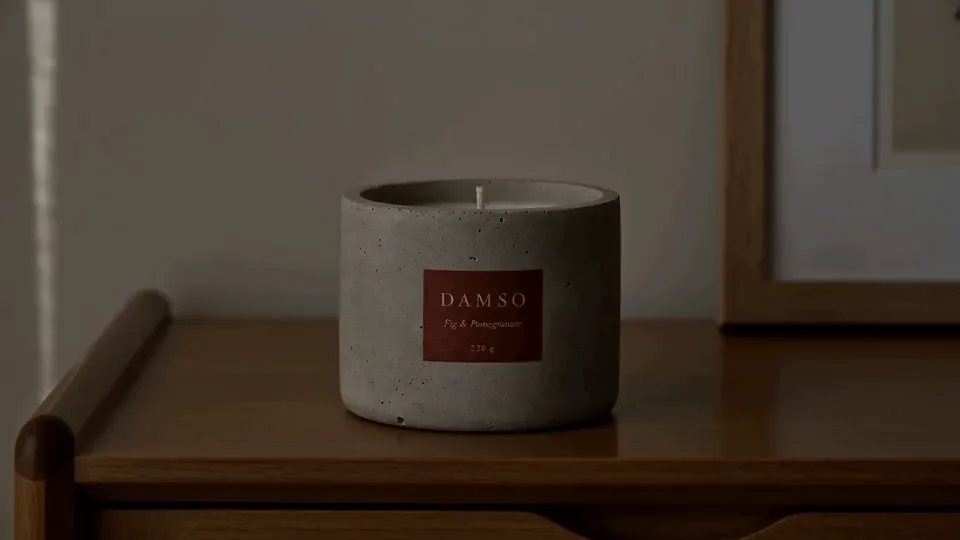
This GESTEL product-video showcase illustrates a cinematic direction for short product content. Use the controls to play and pause the example; your own brief determines the subject and motion.
From product to finished creative
- 01
Prepare the starting image
Choose a clean product image or an approved generated still. Explain the product facts that must stay consistent when it moves.
- 02
Describe the moment
In Canvas, choose a product-video recipe or describe the desired motion. Check the selected model, duration, format, and credit estimate.
- 03
Watch the whole clip
Review every moment for shape changes, unreadable labels, or unwanted movement. Download the version you want to use and finish any broader edit in your video tools.
What you can make
- What to bring
- Product imagery and a focused motion brief. Some models or recipes have additional input requirements; follow the available controls for the chosen workflow.
- What you get
- Short video clips for product storytelling, campaigns, and social placements. Available durations and formats depend on the selected model and recipe.
- What you can change
- Specify motion, setting, and camera direction in the brief. Choose among the settings supported by the current video model.
- What to check
- Video requires a paid plan and available credits. Watch for label drift, shape changes, and inconsistent movement. For longer sequences, assemble exported clips in your video editing tool.
Find the right fit
Choose a clip when motion adds useful information or atmosphere to the product. Keep a still image available for placements that do not play video, and edit longer sequences in a dedicated video workflow.
The model, output format, and workflow determine credit use and plan availability. The pricing page has the current options; video requires a paid plan.
Compare plans and credits →Questions, answered
How long are the videos?
Duration depends on the selected video model and recipe. The available settings in the app are the source of truth; choose a short moment the product can communicate clearly.
Can I animate a generated product photo?
An approved product image can be a useful starting point for supported image-to-video workflows. Check that the still is accurate before using it as the video reference.
Can I generate video on the free plan?
Video generation requires a paid plan. Check the current pricing page and the credit estimate for the model and settings you choose.
Will the product stay identical in every frame?
That is not guaranteed. Review the whole clip for changes to the product, label, shape, or motion, and only use a result that represents the real item accurately.
Keep exploring
Start with one product moment.
Start with your product, review the result, and make it yours.