Quick Shoot
Your product. A scene. A new photograph.
When you already know the setting, start with two choices: the product and the scene. Quick Shoot brings them together so you can review new photographs without first building a long project brief.
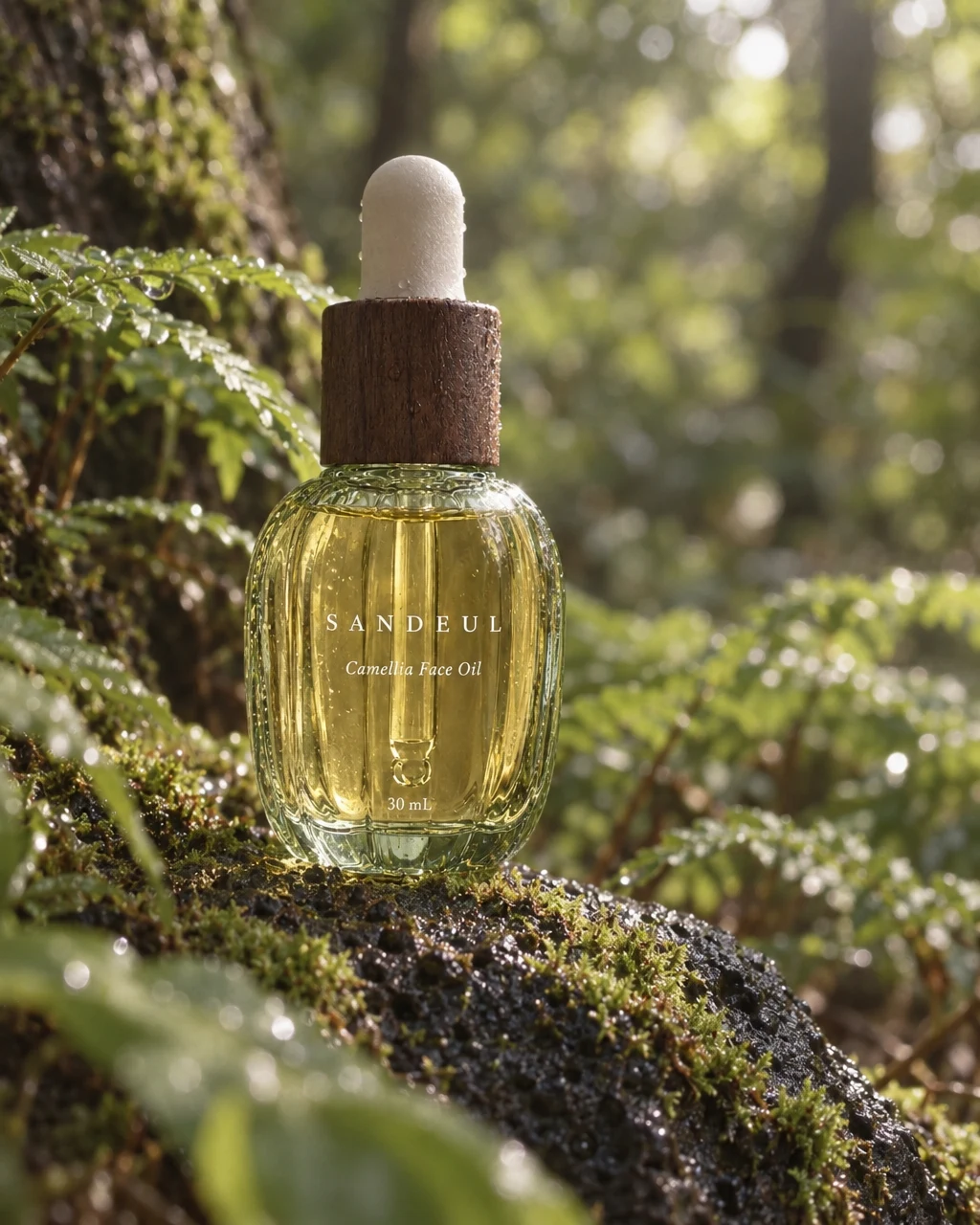
See the idea in practice
A face-oil product and styled photographic examples illustrate the two decisions behind Quick Shoot: what you are selling and the setting you want it to appear in.
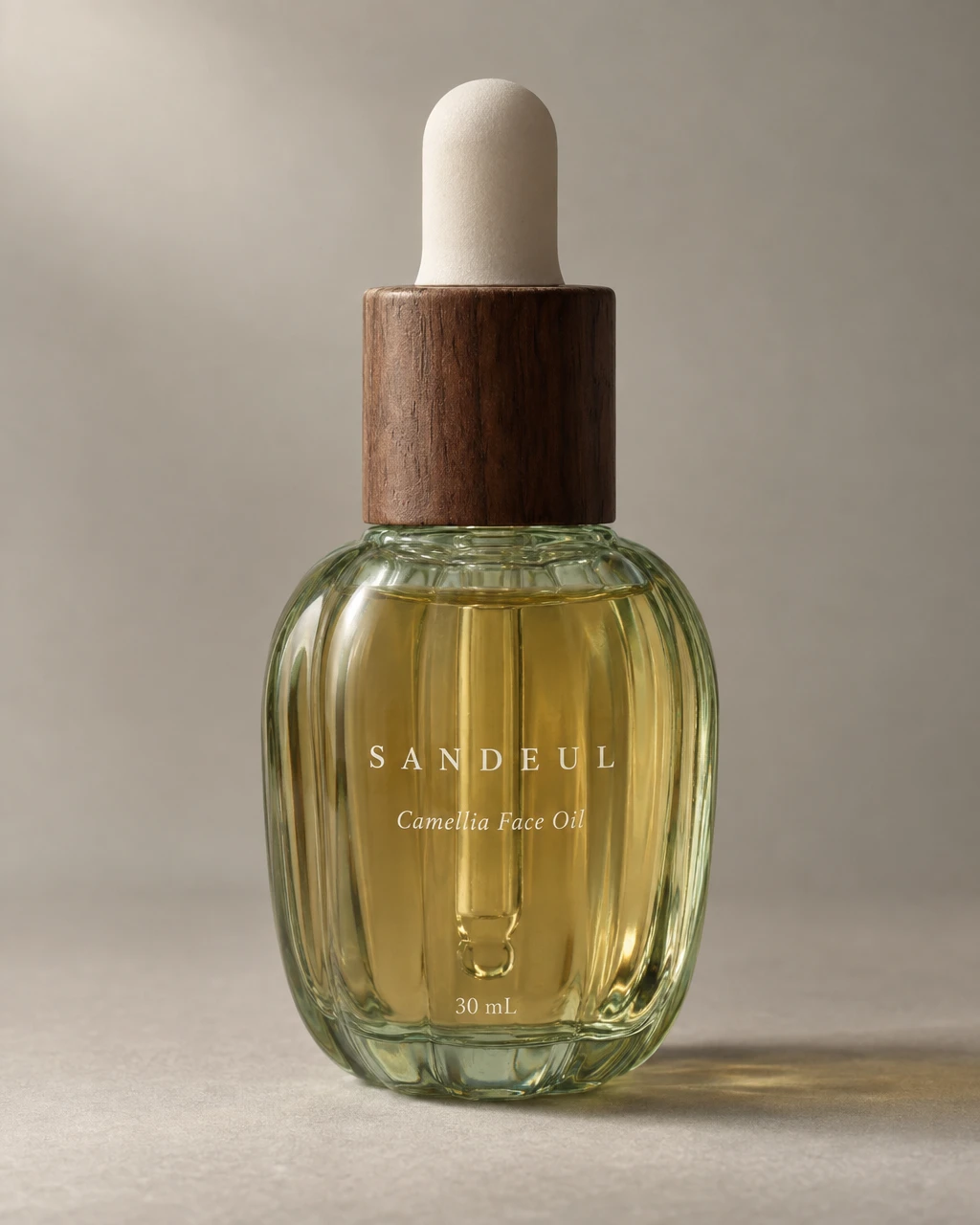
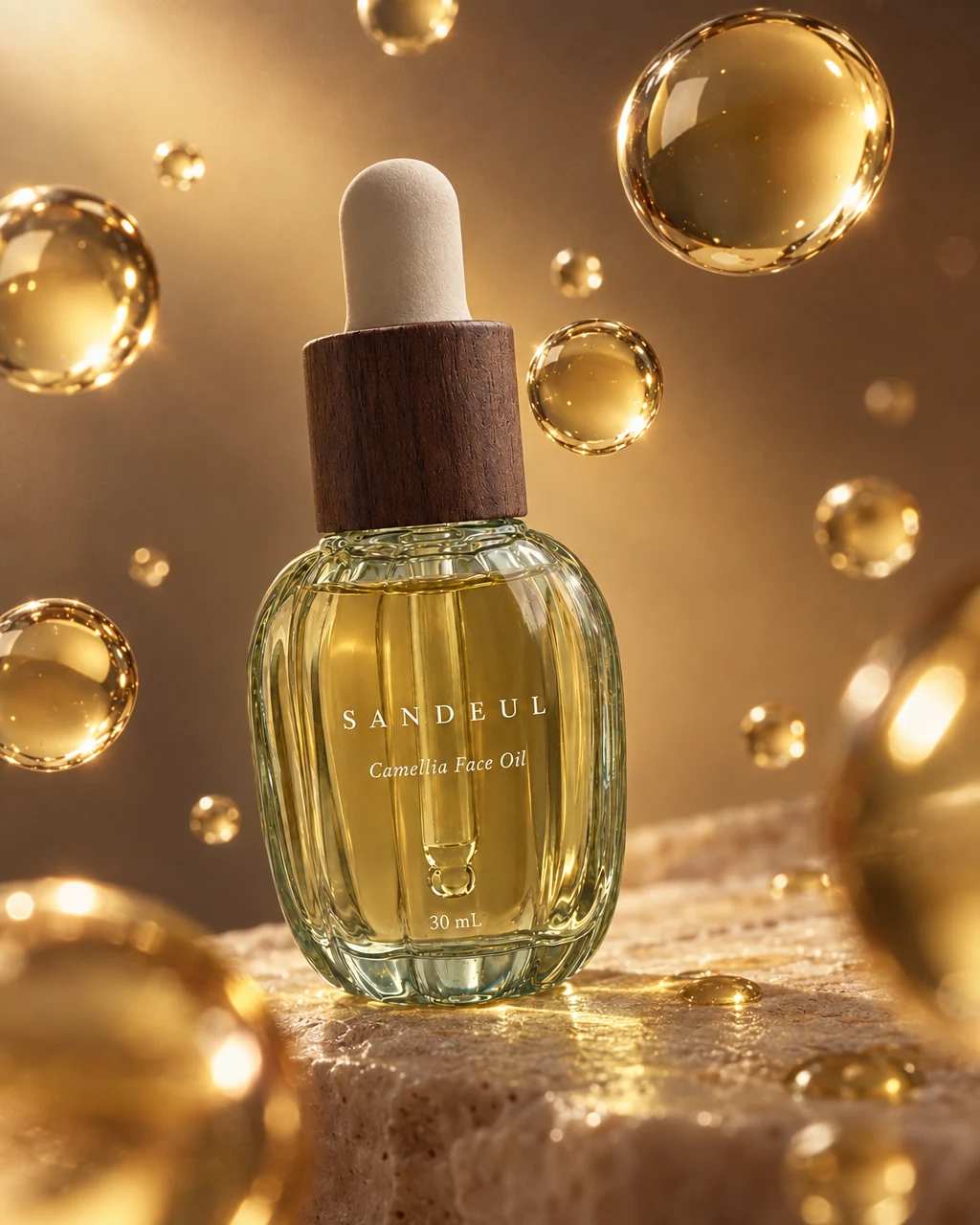
From product to finished creative
- 01
Select the product
Choose a saved product or add a clear photo. Make sure the information describes the variant you want to show.
- 02
Choose a scene and settings
Pick the scene reference, then select the available ratio, image count, and model. Review the credit requirement before starting.
- 03
Inspect the new cuts
Check the product, scene, and crop. Download the results you want to use or continue refining the chosen image.
What you can make
- What to bring
- A product with a usable photo and a scene reference. The product library and scene picker supply the two starting points.
- What you get
- Generated still photographs of your product in the selected visual direction. Finished cuts are saved with your account’s work.
- What you can change
- Available model, aspect ratio, and cut-count options shape the request. The reference guides the scene; the product photo guides the item.
- What to check
- A reference is visual guidance, not an exact reproduction contract. Check scale, label text, and product details in every output.
Find the right fit
Best when the task is a product photograph with a chosen setting. Use Canvas for a developing brief or ad/video recipes, and Brand Agent for a coordinated brand feed.
The model, output format, and workflow determine credit use and plan availability. The pricing page has the current options; video requires a paid plan.
Compare plans and credits →Questions, answered
What do I need before I start?
Select a product with a clear photo and choose a scene. If the product is not in your library yet, add it first.
Can I choose the number and shape of the images?
Quick Shoot offers image-count and ratio settings alongside the available model choices. The current controls and credit estimate are shown before generation.
Does Quick Shoot make a whole brand feed?
It creates photographs from the product and scene you select. Brand Agent is the dedicated workflow for coordinating several cuts around a brand tone and preparing recurring feeds.
When should I use Canvas?
Use Canvas when the brief needs discussion, a specific recipe, or a project that combines image and video work. Quick Shoot keeps the starting choices focused on the product and scene.
Keep exploring
Choose your product and start shooting.
Start with your product, review the result, and make it yours.