Online Sellers
A useful set of product images for your next listing.
A new listing needs more than one attractive picture. Lead with a clear product view, show how the item is used, and answer questions about size, materials, or contents with supporting images. Build that sequence around the facts of the product you actually sell.
From product to finished creative
- 01
List the questions shoppers ask
Decide what the hero and supporting images each need to explain. Collect the real product photos, included items, dimensions, and approved claims.
- 02
Build the image set
Start a clean image in Quick Shoot. Use Canvas recipes for marketplace sets or product-page panels when you need a more specific sequence.
- 03
Check, download, and list
Review details and crop for each sales channel. Upload the chosen files in your seller portal and keep the source photos for the next update.
See the idea in practice
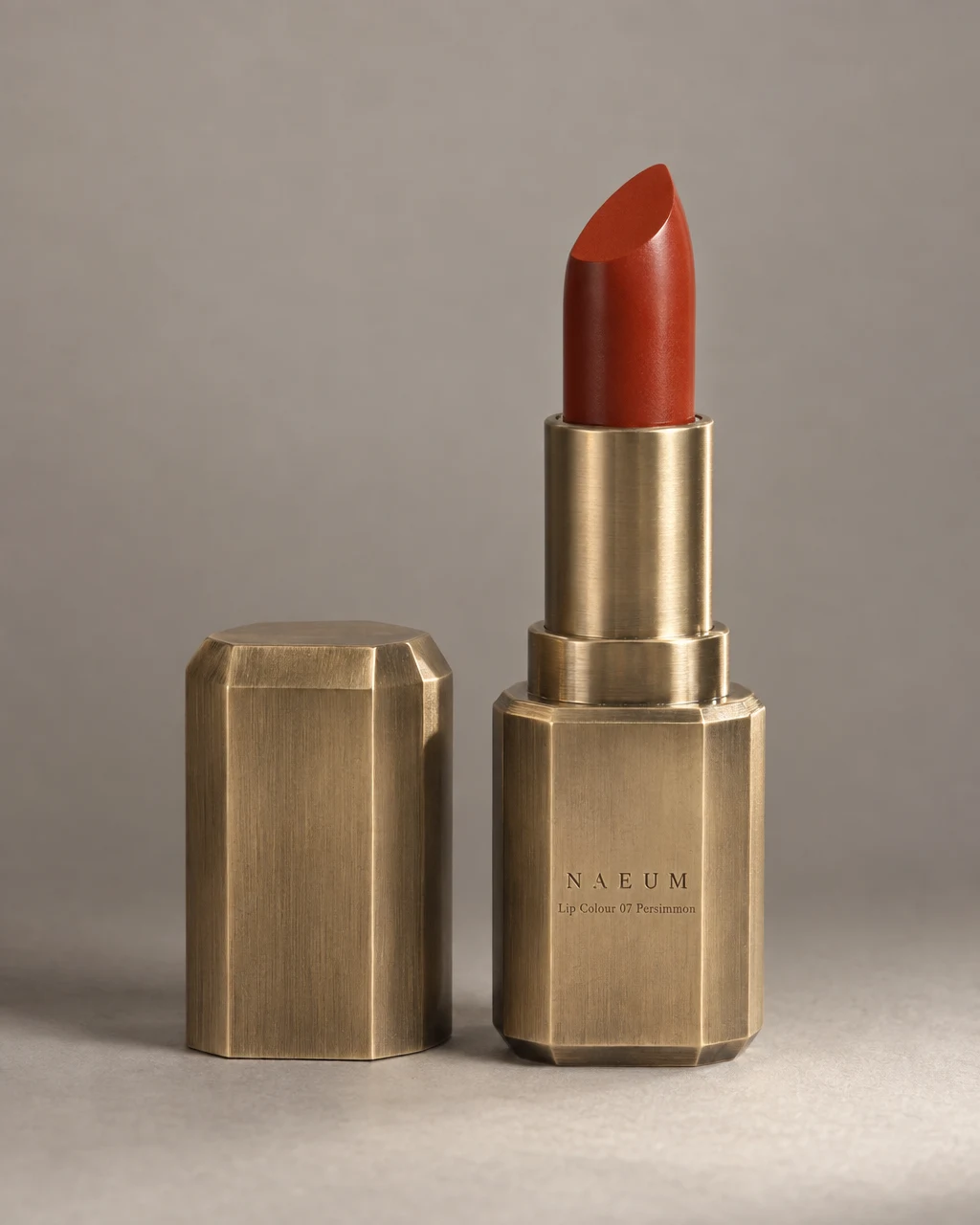
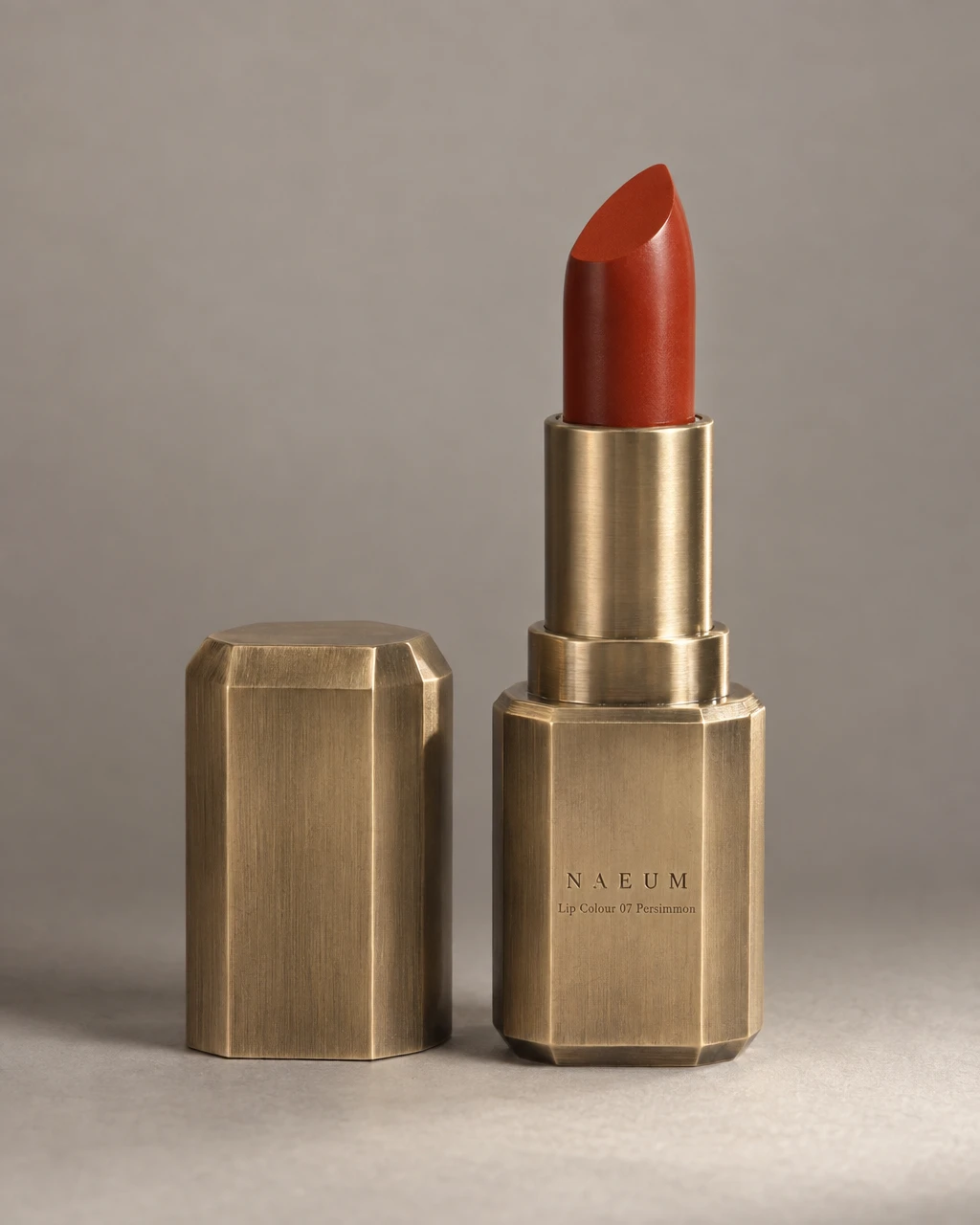
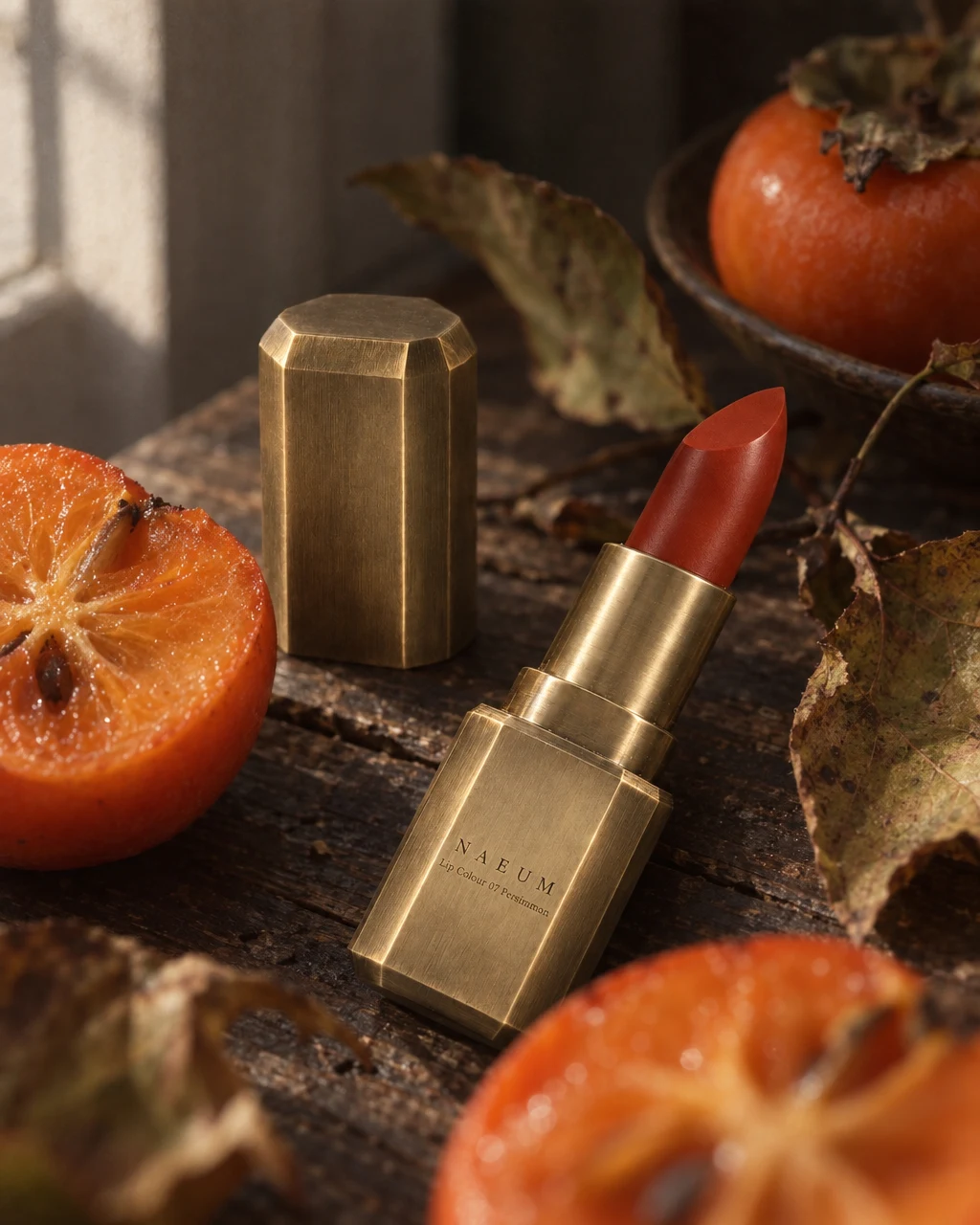
For a lipstick listing, begin with the clean product view, then add a styled photograph. Keep the same packaging and shade across the set, and use the product description to explain facts the pictures cannot establish.
What you can make
- What to bring
- Your own product photographs and verified listing facts. Add accurate material, size, and included-item information when those details matter to the composition.
- What you get
- Hero and supporting photos, lifestyle views, and image panels for a product page. You select and upload the assets to your store or marketplace.
- What you can change
- Try a new setting or crop, request an individual correction, and reuse the product across later projects. Match each image to a specific buyer question.
- What to check
- The images do not create or publish a store listing. Check small text, variant color, dimensions, and marketplace rules yourself; avoid implying accessories are included when they are not.
Find the right fit
Useful for sellers preparing a launch or refreshing a listing from existing product photos. If your main need is a recurring branded feed, explore Brand Agent instead.
The model, output format, and workflow determine credit use and plan availability. The pricing page has the current options; video requires a paid plan.
Compare plans and credits →Questions, answered
Which image should I make first?
Start with a clear product hero. Then choose supporting views that answer real questions about use, material, or what is included. A larger image set is only useful when each picture adds information.
Can I make different versions for different marketplaces?
Yes. The released marketplace recipes cover Coupang, Smart Store, 11st, Gmarket/Auction, and Kakao Gift. Review each result against the current rules for that channel; presets are not an acceptance guarantee.
Does GESTEL build or publish the whole product page?
It can create photographs and product-page image panels. It does not build your storefront or upload the listing to a marketplace. Arrange the assets and product information in your existing seller tools.
Can I reuse the product for another campaign?
Yes. A saved product can be used in later work, so you can create a new setting or campaign without registering it again. Update product information when the packaging or variant changes.
Keep exploring
Prepare the pictures your next listing needs.
Start with your product, review the result, and make it yours.